Level Up Your Terminal: Meet ls., Your New Favorite Custom Directory Lister
We’ve all typed ls millions of times. It’s the muscle-memory command of the command-line world. But out of the box, standard ls can sometimes feel a bit dry, requiring a clumsy mix of flags like ls -laht just to get a clear picture of what’s happening in your directory.
Enter ls—a custom-built, feature-rich Bash script designed to give you an intuitive, color-coded, and deeply informative view of your files at a single glance.
Why Build a Custom ls ?
While modern terminal utilities offer rich directory browsing, rolling your own Bash script gives you absolute control over how information is presented. The ls. command was born out of a desire for cleaner categorization, better color contrast, and immediate insight into file sizes, permissions, and modification timelines without drowning in clutter.
Key Features of ls
-
Smart Categorization: The script automatically separates your workspace into three distinct buckets: Directories, Executables (including Python and PHP scripts), and Regular Files.
-
Vibrant Color Coding:
-
Directories stand out in a bold Dark Green.
-
Executables pop with a Light Green text on a Dark Green background.
-
Regular Files keep a clean, readable White text.
-
Headers & Metadata use eye-catching highlights (like bright green dates and yellow target indicators) so your eyes immediately catch what matters.
-
Powerful Flags at Your Fingertips
Instead of memorizing complex flag combinations, ls keeps things modular with clean, intuitive options:
Usage:
ls. [OPTIONS] [DIRECTORY]
-
-s(Size): Displays human-readable file sizes (e.g.,[1.5M],[3.2K],[278B]) right next to your files. -
-u(User & Permissions): Unmasks the owner and permission strings (e.g.,[USER -rwxr-xr-x]), making security audits effortless. -
-d(Date & Sorting): Shows the exact modification timestamp and automatically sorts every category with the newest files first. -
-h(Help): Pulls up a built-in guide complete with examples and color legends.
See It in Action
Imagine you want to inspect your scripts folder, checking who owns each file, how large they are, and when they were last modified, all sorted by recent activity. You simply run:
ls. -sud ~/.scripts
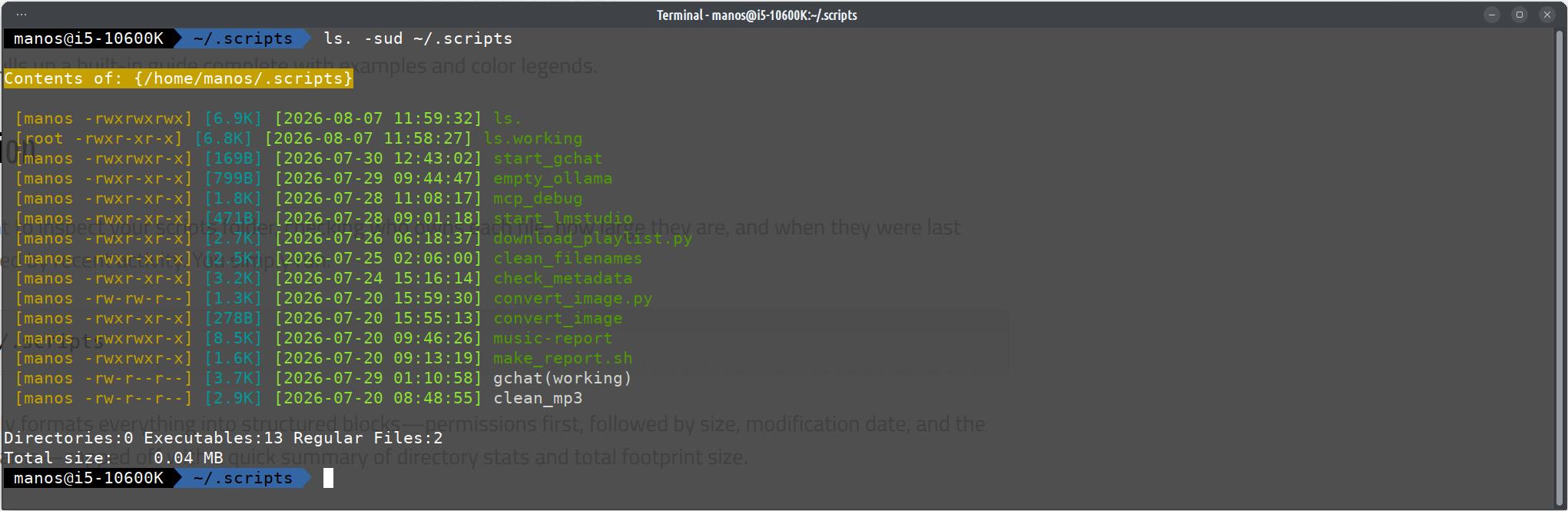
The output cleanly formats everything into structured blocks—permissions first, followed by size, modification date, and the color-coded filename—capped off with a quick summary of directory stats and total footprint size.
How I make that command?
In a directory that you keep all your command I have the ~/.scripts so I can use my commands in any directory
Create a shell file named ls. or how you want to call the custom ls command
paste the code feel free to modify the script
#!/bin/bash
#======================================================================
#      Custom ls. command
#      Made by Alice
#      mintpenguins.com
#      Please do not delete the remarks ,happy coding
#======================================================================
# --- Configuration ---
# Colors
DARK_GREEN_TEXT='\033[1;32m'      # Directories (Bold Green)
LIGHT_GREEN_FG='\033[0;32m'       # Executables (Standard Green)
EXEC_BG='\033[42m'                # Executables Background (Dark Green)
WHITE_TEXT='\033[0;37m'           # Regular Files (White)
BG_Y_TEXT='\e[43m'                # Target Directory Header Background (Yellow)

RESET='\033[0m'
SIZE_COLOR='\033[0;36m'           # Cyan for sizes
PERM_COLOR='\033[0;33m'           # Yellow for permissions/user
DATE_COLOR='\e[0;92m'             # Bright Green for date
HELP_COLOR='\033[1;36m'           # Cyan for help

# --- Arguments Handling ---
TARGET_DIR=""
SHOW_SIZE=false
SHOW_USER_PERM=false
SHOW_DATE=false
HELP=false

while [[ $# -gt 0 ]]; do
    arg="$1"

    if [[ "$arg" == -* ]] && [[ "$arg" != "--" ]]; then
        flags="${arg:1}"
        for (( i=0; i<${#flags}; i++ )); do
            char="${flags:$i:1}"
            case "$char" in
                s) SHOW_SIZE=true ;;
                u) SHOW_USER_PERM=true ;;
                d) SHOW_DATE=true ;;
                h) HELP=true ;;
                *)
                    echo "Error: Unknown option '-$char' in '$arg'. Use -h for help."
                    exit 1
                    ;;
            esac
        done
        shift
    else
        TARGET_DIR="$arg"
        shift
    fi
done

# --- Help Message ---
if [[ "$HELP" == true ]]; then
    echo -e "${HELP_COLOR}Usage: ls. [OPTIONS] [DIRECTORY]${RESET}"
    echo ""
    echo "  ${HELP_COLOR}ls.${RESET}                Show colored directory listing."
    echo "  ${HELP_COLOR}-s${RESET}                 Show file size (e.g., 1.5M) next to name."
    echo "  ${HELP_COLOR}-u${RESET}                 Show user and permissions (e.g., manos drwxr-xr-x)."
    echo "  ${HELP_COLOR}-d${RESET}                 Show modification date and sort by date (newest first)."
    echo "  ${HELP_COLOR}-h, --help${RESET}         Show this help message."
    echo ""
    echo "  ${HELP_COLOR}[DIRECTORY]${RESET}        List contents of a specific directory."
    echo ""
    echo "Colors:"
    echo "  {Directory}    : Dark Green"
    echo "  Executables    : Light Green text on Dark Green background"
    echo "  .py/.php files : Light Green text on Dark Green background"
    echo "  Regular Files  : White"
    echo ""
    echo "Output Order (when multiple flags are used):"
    echo "  [Permissions] [Size] [Date] Filename"
    echo ""
    echo -e "${PERM_COLOR}Examples:"
    echo "  ls.                    # List current directory"
    echo "  ls. -s                 # List with sizes"
    echo "  ls. -u                 # List with user/permissions"
    echo "  ls. -d                 # List with modification dates (sorted newest first)"
    echo "  ls. -sud Music         # List 'Music' folder with permissions, sizes, and dates"
    exit 0
fi

# --- Target Directory Check ---
if [[ -n "$TARGET_DIR" ]]; then
    if [[ ! -e "$TARGET_DIR" ]]; then
        echo "Error: '${TARGET_DIR}' does not exist."
        exit 1
    fi
    if [[ ! -d "$TARGET_DIR" ]]; then
        echo "Error: '${TARGET_DIR}' is not a directory."
        exit 1
    fi
    cd "$TARGET_DIR" || exit
fi

# --- Statistics & Classification ---
DIR_COUNT=0
EXEC_COUNT=0
FILE_COUNT=0
TOTAL_SIZE=0
declare -a DIRS
declare -a EXECS
declare -a FILES

# Helper to get human-readable size
get_size() {
    local bytes=$1
    if (( bytes >= 1073741824 )); then
        echo "$(echo "scale=1; $bytes/1073741824" | bc)G"
    elif (( bytes >= 1048576 )); then
        echo "$(echo "scale=1; $bytes/1048576" | bc)M"
    elif (( bytes >= 1024 )); then
        echo "$(echo "scale=1; $bytes/1024" | bc)K"
    else
        echo "${bytes}B"
    fi
}

# Helper to get user and permissions
get_perms() {
    local item=$1
    local perms=$(stat -c '%A' "$item")
    local user=$(stat -c '%U' "$item")
    echo "${user} ${perms}"
}

# Helper to get modification date
get_date() {
    local item=$1
    local mtime=$(stat -c '%y' "$item" | cut -d'.' -f1)
    echo "$mtime"
}

# Helper to sort an array by modification date (newest first)
sort_by_mtime() {
    local -n arr_ref=$1
    if (( ${#arr_ref[@]} > 1 )); then
        local -a sorted_items=()
        while IFS= read -r line; do
            [[ -n "$line" ]] && sorted_items+=("$line")
        done < <(
            for item in "${arr_ref[@]}"; do
                local mtime
                mtime=$(stat -c '%Y' "$item" 2>/dev/null || echo 0)
                printf "%s\t%s\n" "$mtime" "$item"
            done | sort -t$'\t' -k1,1nr | cut -f2-
        )
        arr_ref=("${sorted_items[@]}")
    fi
}

# Scan directory
for item in * .*; do
    [[ "$item" == "." || "$item" == ".." || ! -e "$item" ]] && continue

    if [[ -d "$item" ]]; then
        DIRS+=("$item")
        ((DIR_COUNT++))
    elif [[ -f "$item" ]]; then
        size=$(stat -c%s "$item" 2>/dev/null || echo 0)
        TOTAL_SIZE=$((TOTAL_SIZE + size))

        if [[ -x "$item" || "$item" == *.py || "$item" == *.php ]]; then
            EXECS+=("$item")
            ((EXEC_COUNT++))
        else
            FILES+=("$item")
            ((FILE_COUNT++))
        fi
    fi
done

# Sort by date (newest first) if -d flag is enabled
if [[ "$SHOW_DATE" == true ]]; then
    sort_by_mtime DIRS
    sort_by_mtime EXECS
    sort_by_mtime FILES
fi

TOTAL_MB=$(echo "$TOTAL_SIZE" | awk '{printf "%.2f", $1/1024/1024}')

# --- Display ---
if [[ -n "$TARGET_DIR" ]]; then
    echo -e "\n${BG_Y_TEXT}Contents of: {${TARGET_DIR}}${RESET}\n"
fi

print_list() {
    local type="$1"
    shift
    local items=("$@")

    for item in "${items[@]}"; do
        local prefix=""

        # Build prefix based on flags (Order: Permissions -> Size -> Date)
        if [[ "$SHOW_USER_PERM" == true ]]; then
            local perm_info=$(get_perms "$item")
            prefix+=" ${PERM_COLOR}[$perm_info]${RESET}"
        fi

        if [[ "$SHOW_SIZE" == true ]]; then
            local bytes=$(stat -c%s "$item" 2>/dev/null || echo 0)
            local h_size=$(get_size "$bytes")
            prefix+=" ${SIZE_COLOR}[$h_size]${RESET}"
        fi

        if [[ "$SHOW_DATE" == true ]]; then
            local date_info=$(get_date "$item")
            prefix+=" ${DATE_COLOR}[$date_info]${RESET}"
        fi

        # Format the line based on type
        if [[ "$type" == "DIR" ]]; then
            # Directory: [Permissions] [Size] [Date] {Name}
            echo -e "${prefix} ${DARK_GREEN_TEXT}{${item}}${RESET}"
        elif [[ "$type" == "EXEC" ]]; then
            # Executable: [Permissions] [Size] [Date] Name (with background)
            echo -e "${prefix} ${EXEC_BG}${LIGHT_GREEN_FG}${item}${RESET}"
        else
            # Regular File: [Permissions] [Size] [Date] Name
            echo -e "${prefix} ${WHITE_TEXT}${item}${RESET}"
        fi
    done
}

print_list "DIR" "${DIRS[@]}"
print_list "EXEC" "${EXECS[@]}"
print_list "FILE" "${FILES[@]}"

echo -e "\nDirectories:${DIR_COUNT} Executables:${EXEC_COUNT} Regular Files:${FILE_COUNT}"
echo -e "Total size:    ${TOTAL_MB} MB"

if [[ -n "$TARGET_DIR" ]]; then
    cd - > /dev/null
fi
Wrap-Up
Your terminal environment should work for you, reflect your workflow, and look great doing it. Writing a custom script like ls. transforms a mundane daily routine into a tailored, efficient experience. Whether you're hunting down a script you edited five minutes ago or cleaning up old logs, ls. brings order and style straight to your prompt.